
How to Transfer Files From PC to Phone Without USB
September 15, 2026
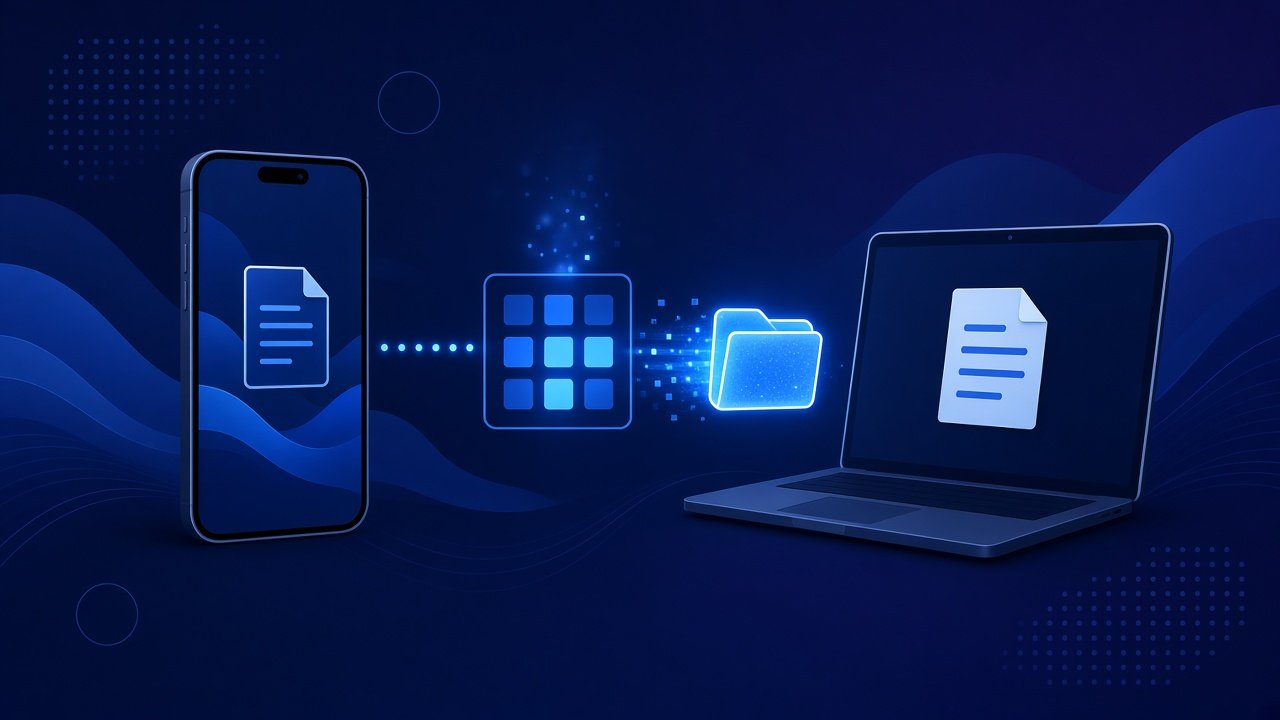
Moving a file from a PC to a phone should not depend on finding the right cable, waiting for a driver, or digging through cloud folders. If both devices can open a browser, you can send the file with a short code and open it on the phone in minutes.
Why USB transfers still slow people down
USB works when everything cooperates. Often it does not. Cables fail, ports get flaky, and phones may ask you to switch modes before the computer even sees the storage. Windows and macOS also treat phone folders differently, so a file that looks easy to copy on one machine can be hard to find on another.
Cloud uploads add another delay. You upload from the PC, wait for sync, then download on the phone. That is fine for ongoing backup. It is poor for a one time handoff of a PDF, installer, photo set, or short video.
What you need before you start
- A PC with the file ready on disk
- A phone on Wi Fi or mobile data
- A modern browser on both devices
- Enough free storage on the phone for the full download
- A short window where both devices can stay online
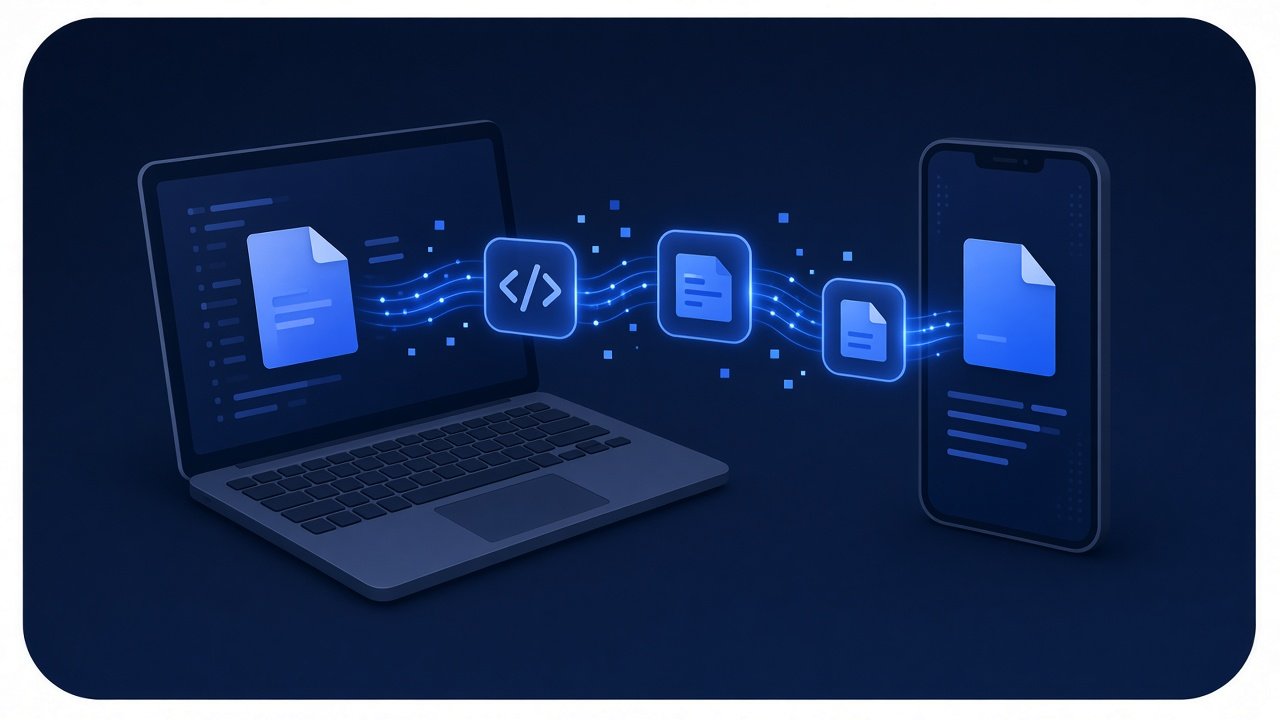
You do not need matching brands, the same operating system, or an app store install. Windows to Android, macOS to iPhone, and mixed setups all work if both sides can reach the transfer page.
Transfer with a short code
ShareSafeAI Quick Transfer is built for this kind of job. On the PC, open Quick Transfer, choose the file, and create a share. The tool gives you a short code. On the phone, open the same tool, enter the code, and download.
- On the PC, open Quick Transfer.
- Select the file you want to send.
- Create the transfer and copy the short code.
- On the phone, open Quick Transfer and enter the code.
- Download the file and confirm it opens as expected.
Keep the PC online until the phone finishes. If the connection drops mid download, start again with a fresh code rather than guessing whether the first attempt completed. If you need several related files as one package, zip them first or use Bulk File Share.
Tips that keep phone downloads reliable
Prefer Wi Fi on the phone when the file is larger than a few megabytes. Mobile data works, but slower links raise the chance of a stalled download.
Check file size before you send. Very large videos need more time and a stable network. If phone storage is nearly full, free space first so the download does not fail at the end.
Use a clear file name. Rename the file on the PC before upload if the current name is vague. That makes it easier to find in Downloads on Android or Files on iPhone.
Open the file once after download. Confirm PDFs open, images display, and archives extract. Catching a bad download early is easier than hunting for it later.
Keep the phone screen awake. Some mobile browsers pause work when the screen locks. Leave the transfer page visible until the download finishes.
When Quick Transfer is the better path
Use this approach when you need a single file or a small set moved now, not synced forever. It fits travel days, shared workspaces, and moments when you left the cable at home. It also helps when phone storage mode is locked down by policy, or when someone else needs a file without joining your cloud account.
If the recipient will open the file later rather than right now, a temporary link from Secure File Share may fit better. If you later need ongoing sync, use your usual cloud tool. For a direct PC to phone handoff, a short code transfer keeps the steps short.
Common problems and quick fixes
If the phone cannot find the transfer, confirm both sides used the same code and that the share has not expired. If the download starts then stops, switch the phone to a stronger Wi Fi network and retry. If the file opens but looks wrong, check that you selected the intended file on the PC before creating the share.
Browser permissions can also block downloads. Allow the download prompt on the phone, then try again. On locked work phones, company policy may limit downloads from the browser. In that case you may need a personal device or an approved channel.
If the phone saves the file but you cannot find it, open the Downloads list in the browser first, then check the Files or Downloads app.
For the next PC to phone move, skip the cable hunt and use Quick Transfer when both devices can reach the web. Pick the file, share the code, download on the phone, and confirm the result.
Try it on ShareSafeAI
Open the related tool and create a transfer or share link in your browser.
Open related tool