
Share Files Between Two Laptops Without a USB Stick
September 15, 2026
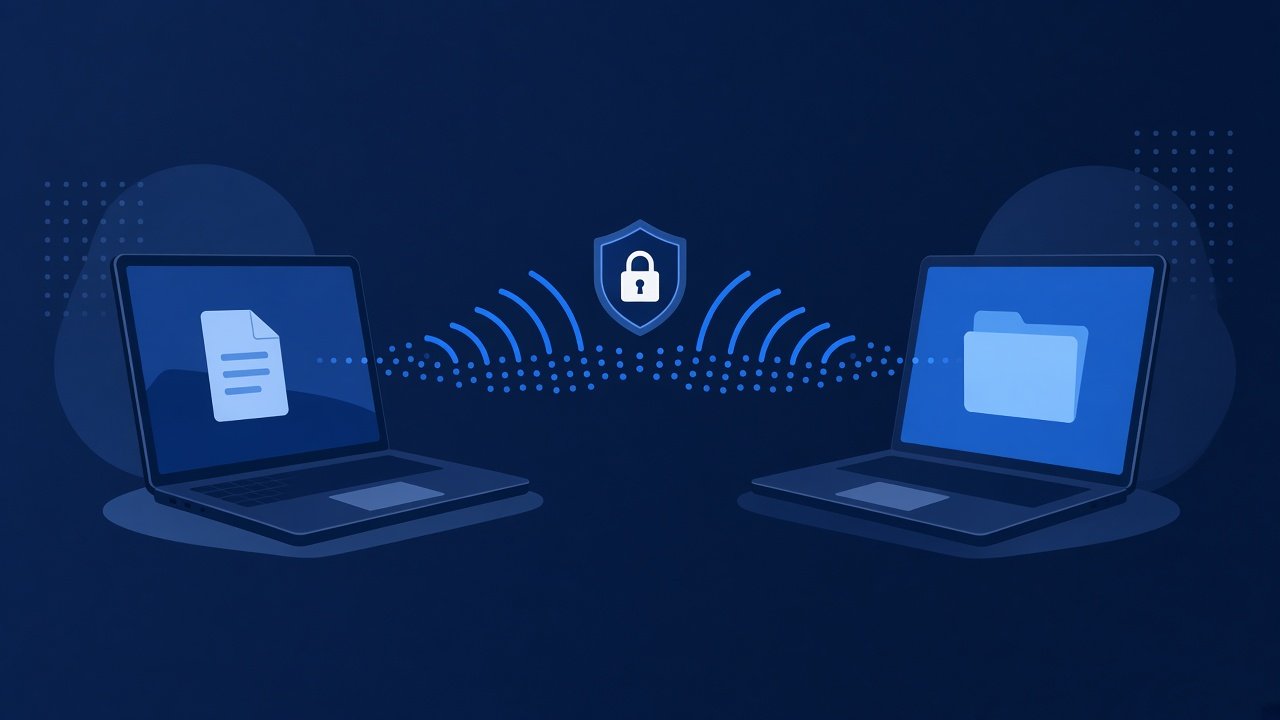
Two laptops on the same desk still do not guarantee an easy file handoff. USB sticks get left behind, local network sharing can be blocked, and email size limits stop larger files cold. A browser based short code transfer is often the fastest way to move a document, zip, or video between machines.
Why laptop to laptop sharing gets messy
Local sharing depends on network discovery, permissions, and firewall rules. Home Wi Fi may allow it. Office networks often do not. Guest networks isolate devices on purpose, so the second laptop never sees the first.
Cloud folders help when both accounts are already signed in and synced. They are slower when you only need one file moved once. Email and chat tools also fail when attachments hit size caps or when corporate filters strip archives.
What a short code transfer solves
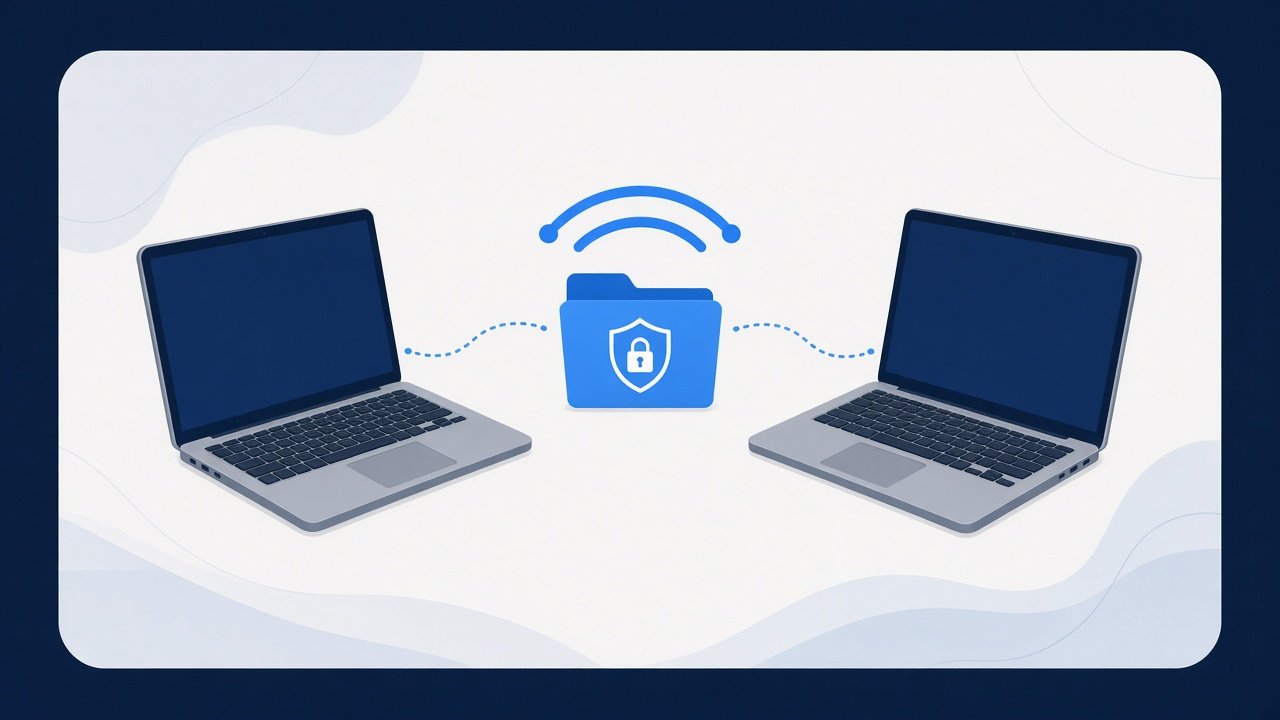
A short code transfer does not require the laptops to discover each other. Each machine talks to the transfer service through the browser. One side uploads and gets a code. The other side enters the code and downloads. That pattern works across Windows and macOS, and it works when the devices sit on different networks.
It also helps when the two laptops belong to different people. You pass a short code, finish the download, and move on without joining a private Wi Fi or enabling local file sharing.
Step by step between two laptops
- On the sending laptop, open Quick Transfer.
- Select the file or small set of files you need to share.
- Create the transfer and note the short code.
- On the receiving laptop, open Quick Transfer and enter the code.
- Download the file, then open it to confirm it arrived intact.
Keep the sending laptop online until the download finishes. If you close the browser too early, the receiver may not complete the transfer. If you are sending several related items, zip them first or use Bulk File Share. Double check characters that look alike when typing the code.
Practical rules for cleaner handoffs
Send what you need, not the whole folder. Extra files add time and clutter. Zip only when the receiver needs a bundle that should stay together.
Agree on the code channel. Read the code aloud, send it in a chat message, or write it down. Short codes are easy to mistype, so confirm before the download starts.
Use a stable network for large files. Hotel Wi Fi and overloaded cafe networks can stall big uploads. If the upload keeps failing, switch networks before you retry.
Confirm after download. Open the PDF, play a few seconds of video, or extract the archive. A quick check beats discovering a truncated file later.
Use clear names. Rename the file before upload if the current name is vague. Receivers find project-brief.pdf faster than copy-final-v3.pdf.
When this beats USB and local sharing
Use Quick Transfer when you do not have a cable or drive, when local sharing is blocked, or when the two laptops belong to different people who should not join each other networks. It also helps in meeting rooms where you need to move a deck or demo package without installing software.
USB remains useful for offline rooms and very large media libraries. For a one time laptop to laptop move across mixed systems, the short code path usually has fewer failure points. If the receiver will download later rather than while you wait, a temporary link from Secure File Share may fit better.
Security and workplace notes
Treat the short code like a temporary key. Share it only with the person who should download the file, and do not post it in a public channel. If your workplace restricts outbound uploads, you may need an approved tool or a different route.
Avoid sending credentials inside casual file names or readme text. If you must pass a password with a file, use Password Share rather than stuffing secrets into the same chat thread as the code.
Quick troubleshooting
If the code is rejected, confirm it was typed exactly and that the share is still active. If the download is slow, pause other heavy browser tabs and retry on a stronger connection. If the file will not open, verify the sender selected the correct file before creating the share.
Browser download blockers can hide the file. Check the downloads panel and allow the transfer if prompted. If the upload never finishes, try a smaller test file first, then retry the real file or split oversized packages into logical batches.
For the next laptop to laptop move, open Quick Transfer, share the short code, and download on the second machine. You keep the handoff simple without USB and without waiting on a full cloud sync.
Try it on ShareSafeAI
Open the related tool and create a transfer or share link in your browser.
Open related tool