
How to Share Multiple Files With One Link
September 15, 2026
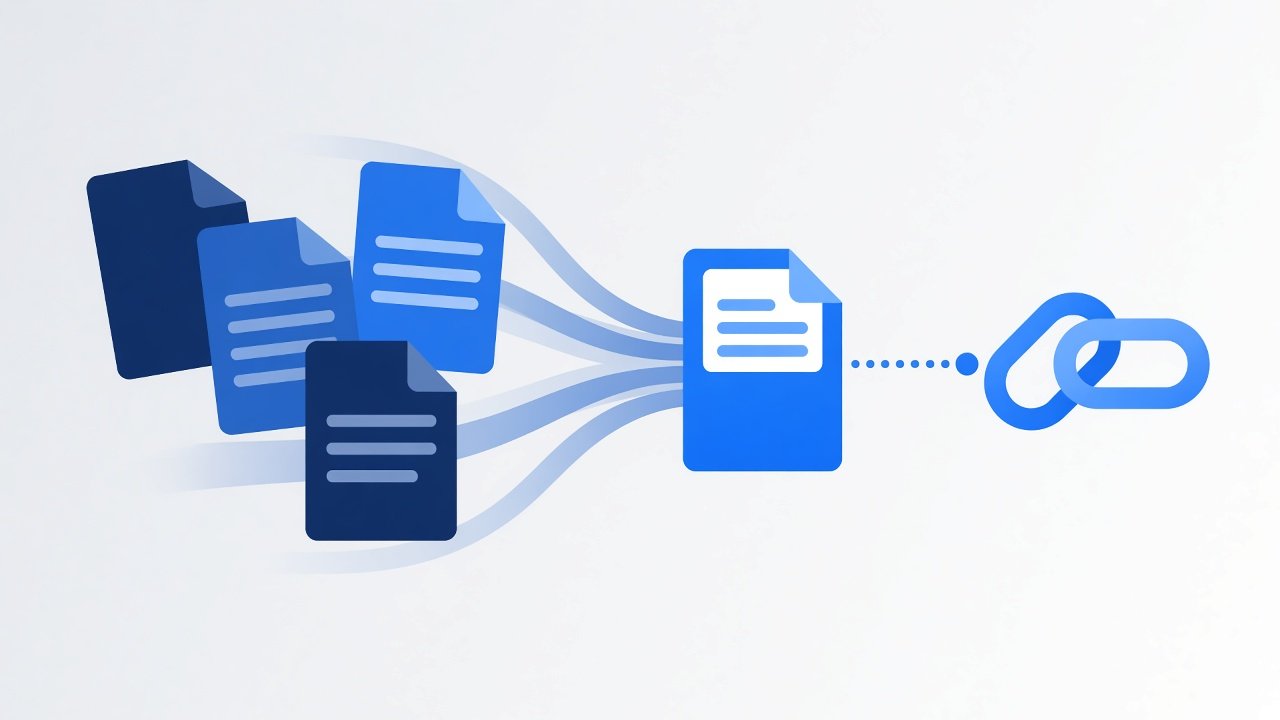
Sending several files one by one turns a simple handoff into a mess of attachments, compressed chat uploads, and missing pieces. A better approach is to upload the set once and share a single expiring link. The recipient opens one page, sees the full list, and downloads only what they need.
Bulk sharing sounds like a power user feature, but the everyday need is ordinary. Invoices come with receipts. Design feedback needs screenshots plus a spreadsheet. A photo set needs captions. When those pieces travel in separate messages, someone always asks which version is current. One link keeps the package together from the start.
Why one link beats many attachments
Separate sends create version confusion. Someone downloads three of five files, asks for the rest later, and you end up resending an outdated copy. Chat apps may compress images or refuse larger videos. Email can bounce when the bundle grows. One bulk share link keeps the package together and keeps delivery outside the inbox size trap.
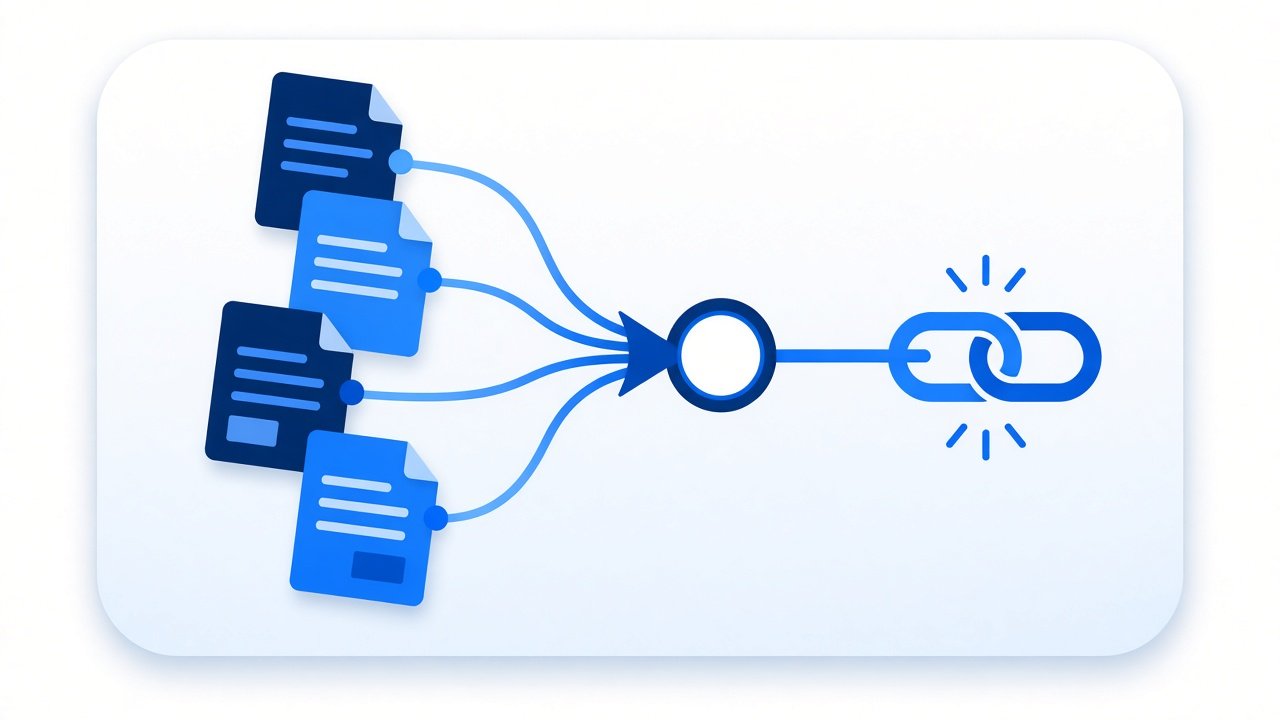
A single URL is also easier to track in conversation. You paste one link, confirm it was opened, and move on. That is especially helpful for project folders, invoice packs, photo sets, and mixed document drops.
Multiple attachments also create uneven quality. One image gets compressed by a messenger. Another PDF arrives fine. A video never lands. The recipient then rebuilds the set from fragments and assumes missing pieces were never sent. A bulk page with filenames and sizes makes gaps visible before the work starts. There is a social benefit too: people can return to the same URL during the active window and grab whatever they skipped, without another round of uploads from you.
What bulk file sharing should include
A useful multi file share tool should feel close to selecting several items in a file picker:
- Upload multiple documents, images, zip archives, and common video formats together
- Keep each original filename visible on the share page
- Allow an optional note so the recipient knows what the bundle is for
- Offer short lifetimes such as 24 hours or seven days
- Support an optional open password for shared inboxes or group chats
ShareSafeAI's bulk file share tool follows that model. Recipients see the file list with sizes, then download items individually. You can also upload a ready made zip if that is truly what you want to send. Individual downloads matter because not every recipient needs every file.
How to share several files with one URL
- Open bulk file share and select every file that belongs in the handoff.
- Add a short note such as "project files for review" when context helps.
- Choose 24 hours for same day work or seven days for slower replies.
- Set an open password if the link might be forwarded beyond the intended person.
- Create the bundle link, copy it, and send that one URL.
Ask the recipient to download what they need promptly. Temporary shares are delivery tools, not long term storage. Before you upload, rename files so the list reads clearly. "invoice-march.pdf" and "receipt-march.pdf" beat vague scan names and make the share page easier to scan.
Practical situations for bulk links
Use one link when you are sending invoices with supporting PDFs, a mix of screenshots and spreadsheets, a photo set plus captions file, or a zip alongside separate source documents. It also helps when people on different devices need access without installing another app.
- Client delivery packs with docs, images, and a short readme
- Event photo sets that are too awkward to attach one by one
- Contractor handoffs that mix plans, notes, and reference media
- Team reviews where each person needs a different subset
Keep the bundle intentional. Do not include files the recipient does not need. Prefer clear filenames before upload. Blocked executable and script types are a feature, not a limitation, because everyday sharing should not become a malware delivery path. If your set is truly one archive, upload the zip. If recipients need to browse and choose, upload the loose files.
Bulk share versus a single file link
If you only have one file, a single file temporary link is enough. When the handoff includes several related items, use bulk sharing so the recipient does not have to collect pieces from different messages. One URL means one confirmation, one expiry, and one place to look when something is missing.
Use a password when the link might land in a shared inbox. Use the shorter expiry when everyone is online today. For that workflow, start with ShareSafeAI's free bulk file share tool and send one clean link.
Try it on ShareSafeAI
Open the related tool and create a transfer or share link in your browser.
Open related tool