
Free WiFi QR Code for Guests Without Typing the Password
September 15, 2026
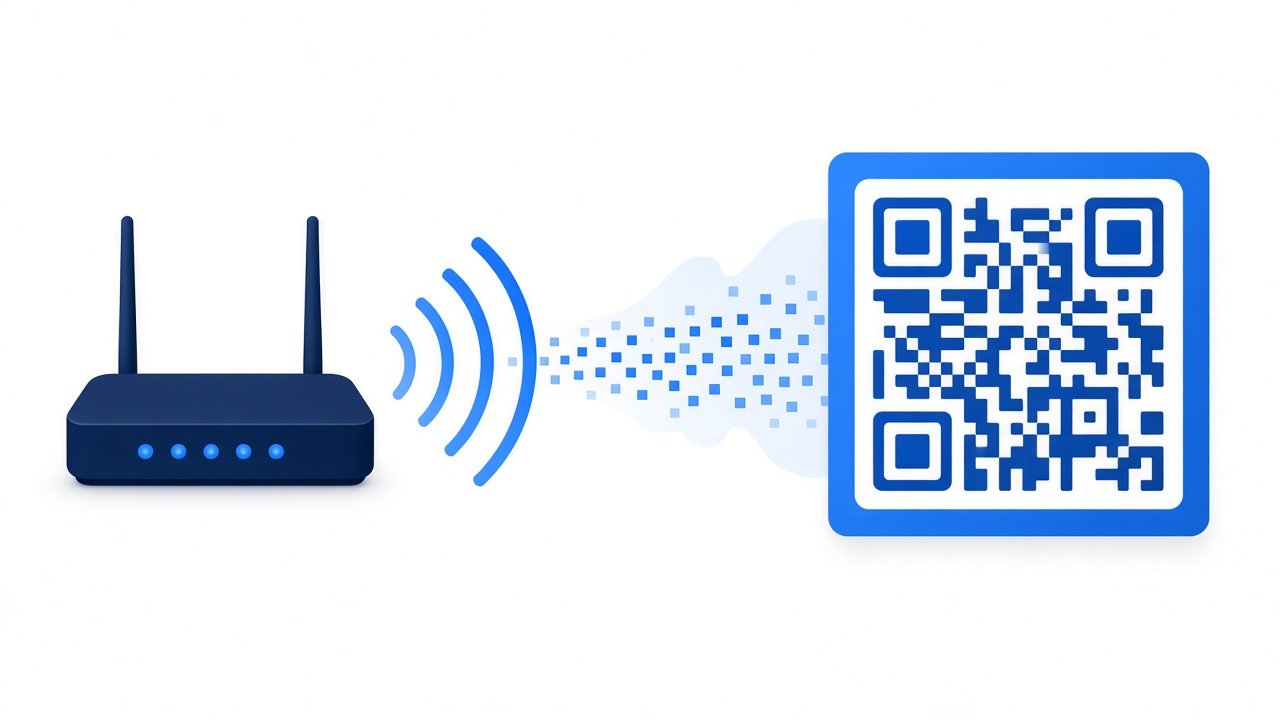
Guests should not have to type a long WiFi password from a sticky note. A WiFi QR code lets visitors scan once, join the network, and get online without reading a passphrase aloud or asking you to unlock your phone. It is one of the easiest hospitality upgrades for homes, offices, cafes, and event spaces.
The improvement is immediate. Guests stop hovering near the router. Hosts stop repeating symbol heavy passwords across a noisy room. The network details live in a scannable square that you can print once and reuse until the password changes.
Why guest WiFi QR codes work so well
Long passphrases are safer than short ones, but they are harder to dictate. People mistype symbols, confuse similar characters, and ask you to repeat the password in a busy room. A QR code stores the network name, password, and encryption type in a standard format most phones already understand.
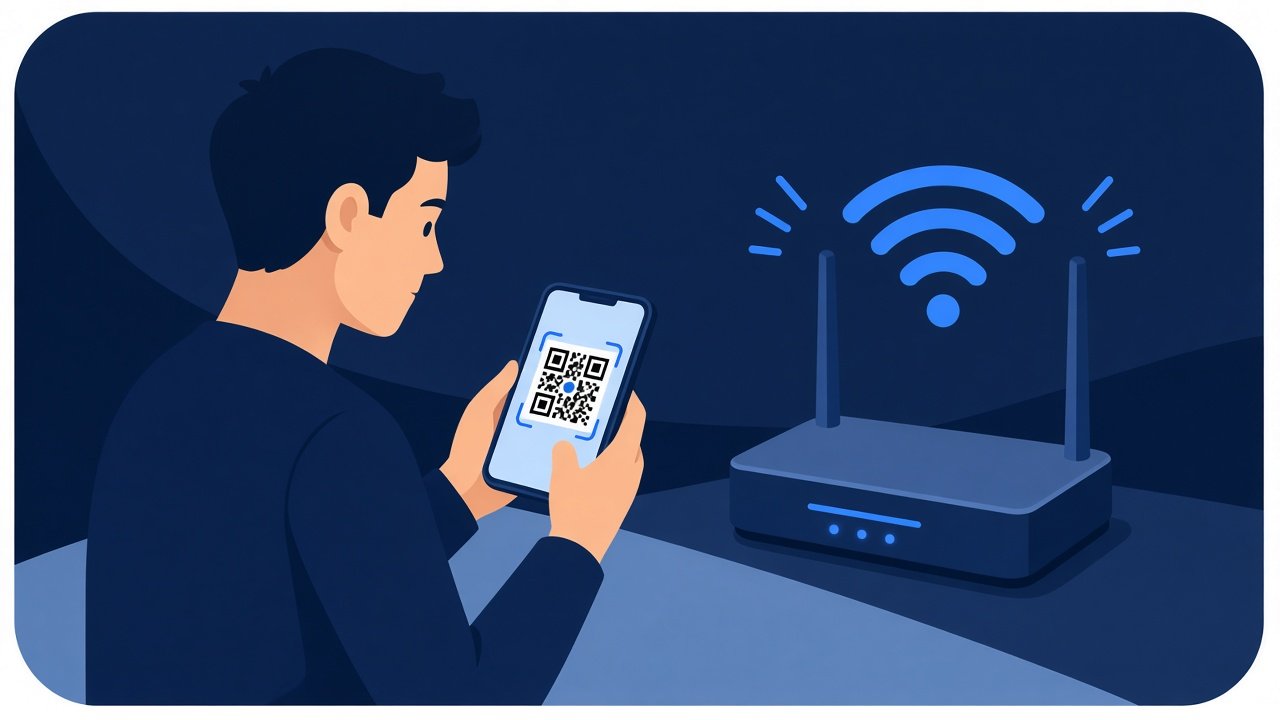
Printed codes also keep the password off whiteboards and group chats. You can leave a card by the door, include the code in a welcome packet, or place it at the reception desk. Guests scan, connect, and move on.
There is a privacy side benefit. When you read a password aloud, nearby people hear it. When you text it into a group chat, it stays searchable. A QR card still contains the secret, so place it thoughtfully, but it avoids broadcasting the passphrase every time a new guest arrives.
What you need to generate a WiFi QR code
You only need a few details:
- Network name (SSID)
- WiFi password
- Encryption type, usually WPA, WPA2, or WPA3
- Whether the network is hidden
ShareSafeAI's free QR code generator supports WiFi credentials along with website URLs, plain text, and short contact cards. Choose colors that match your print materials, then download PNG for screens or SVG for sharper print output. Accuracy matters more than design: copy the SSID exactly and choose the encryption setting that matches your router.
How to create a guest WiFi QR code
- Open the QR code generator and select the WiFi credentials type.
- Enter the exact SSID, including capitalization and spaces.
- Add the password and choose the matching encryption option.
- Mark the network as hidden only if your router is configured that way.
- Pick foreground and background colors with strong contrast for easy scanning.
- Generate the code, download PNG or SVG, and print or display it for guests.
Test the code with at least one Android phone and one iPhone before you print a large batch. Small typos in the SSID or password are the most common reason a scan fails. After a successful test, save the print ready export. When you rotate the password later, regenerate the code instead of editing a photo of the old square.
Placement and design tips
Keep contrast high. Dark modules on a light background usually scan best. Avoid placing the code behind glass glare or next to busy patterns. Leave quiet space around the edges so cameras can find the square quickly.
Size matters. A tiny code on a crowded flyer frustrates guests. For a table card, make the QR large enough to scan from arm's length. For a wall poster, enlarge it further and keep the surrounding text short: network purpose is enough, the password does not need to be printed beside the code.
- Entry table cards for homes and short stays
- Reception desk signs for offices and clinics
- Table tents for cafes and coworking spaces
- Welcome packet inserts for events and workshops
If you brand the card, keep logos outside the quiet zone around the QR. Do not stretch the square or overlay text on the modules. Matte finishes help when laminate or window light would otherwise cause glare.
Guest network habits worth keeping
Prefer a dedicated guest network when your router supports one. Rotate the guest password periodically and regenerate the QR after each change. Do not reuse your main admin credentials on a public facing card. A guest network isolates visitors from printers, shared drives, and home devices, which matters more than any decorative flourish on the code itself. Replace faded or damaged prints promptly so guests are not stuck with a half working card at the door.
When you want visitors online without password spelling contests, create a free WiFi QR with ShareSafeAI's QR code generator, print it once, and let guests scan their way in. Update the code whenever the password changes, and keep the guest network separate from the systems you actually care about protecting.
Try it on ShareSafeAI
Open the related tool and create a transfer or share link in your browser.
Open related tool