
Digital Business Card With QR Code You Can Share Instantly
September 15, 2026
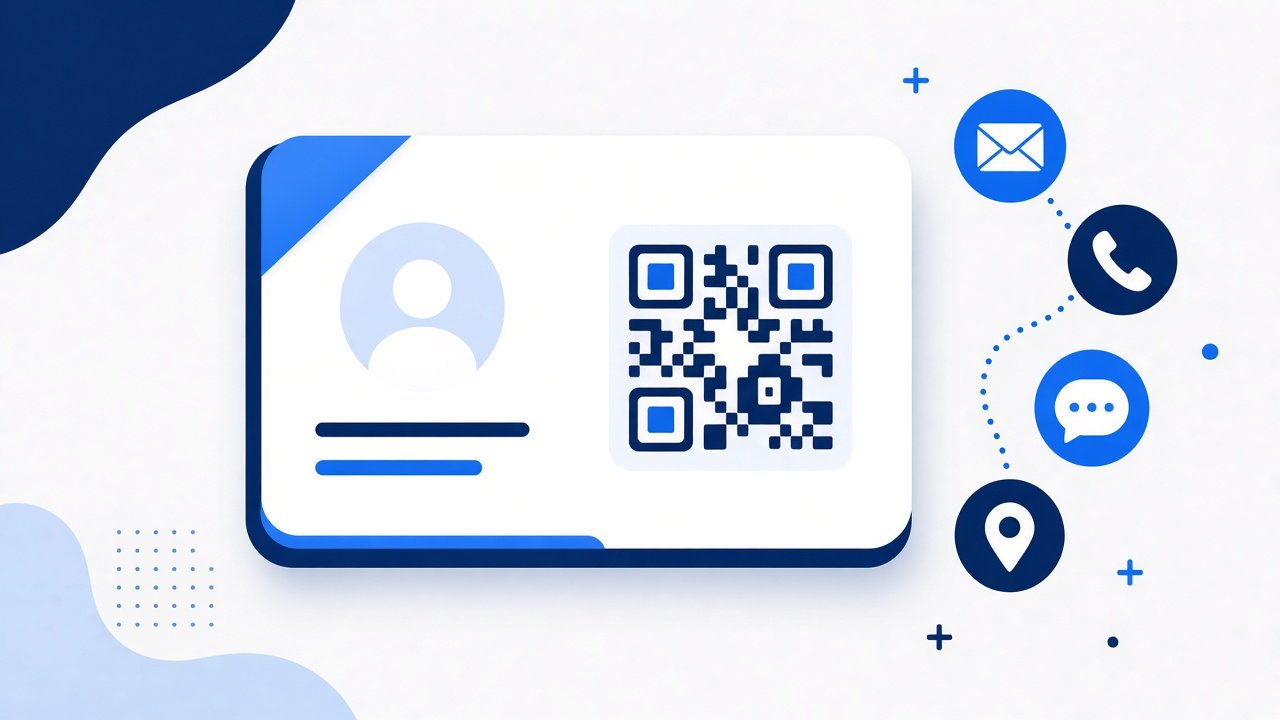
Paper cards get lost in tote bags. Typing a number into a phone during a noisy event invites mistakes. A digital business card with a QR code lets someone save your details in one scan, without hunting for a pen or hoping their notes app keeps the spelling right.
ShareSafeAI Contact Card builds a shareable page with name, phone, email, company, and a vCard style export path, plus a QR that opens the card on another phone. You keep one link and one code image ready for the moments when introductions happen fast.
Why digital cards beat paper in real rooms
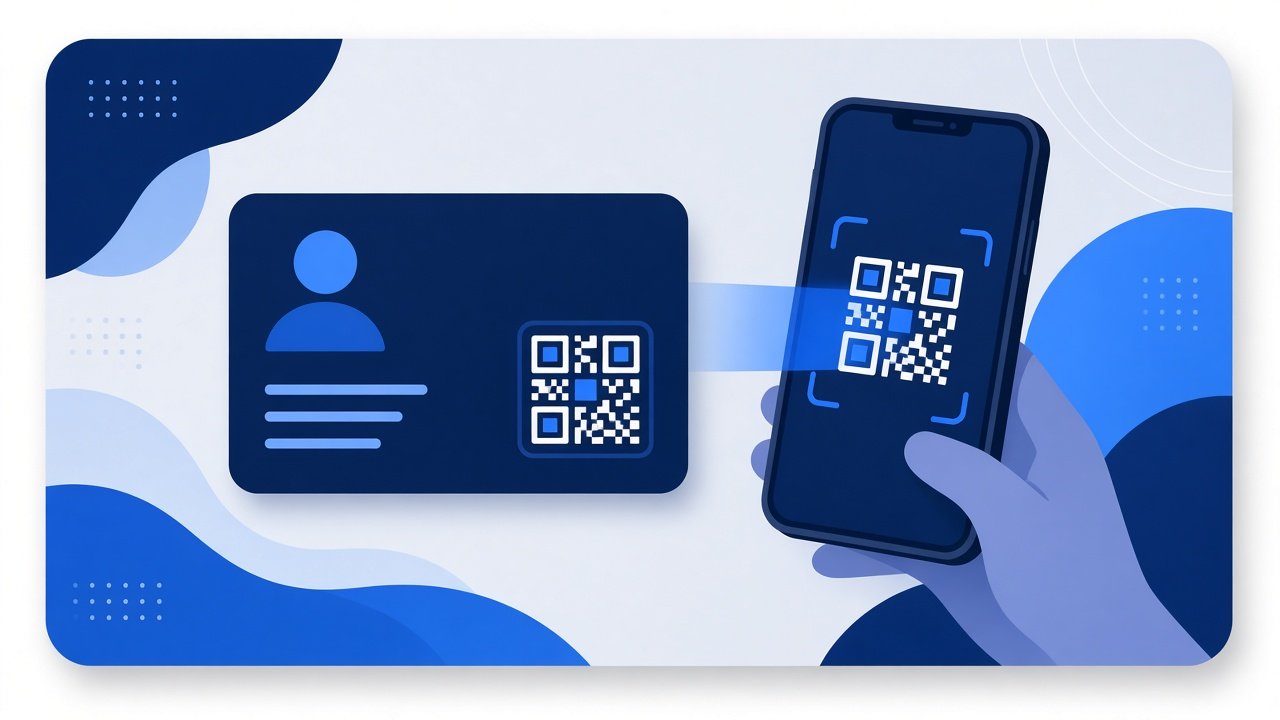
Conferences, meetups, and client kickoffs are loud and short on attention. A stack of paper cards looks professional until the stock runs out or the recipient never enters the details into their phone. A QR backed card skips that busywork. The other person points their camera, opens your page, and decides whether to save the contact right away.
Digital cards also stay current. When your title, number, or company name changes, you update the hosted card instead of reprinting outdated stock. That matters for freelancers and small teams who switch roles more often than print runs allow.
Build a card worth scanning
A useful card is clear, short, and honest about what you want people to do next. Start with fields you are comfortable sharing in a public or semi public setting.
- Open Contact Card and enter name, phone, email, and company as needed.
- Add a short note if helpful, such as event name, role, or office hours.
- Create the card and test the QR with a second device before you rely on it.
- Save the page link and keep the QR image on your phone for quick display.
- Practice showing the QR at arm length so the other camera can focus without glare.
Keep personal home addresses off the card unless you truly need them there. Networking cards work best with professional reachability, not private location detail.
What to put on the card and what to leave off
Include the channels you actually answer. A phone number you never pick up wastes the scan. An email that goes to a shared inbox can work if you say so in the note. A company website or booking page is useful when the next step is a meeting, not a call.
Leave off temporary booth discounts, long biographies, and private calendar links that expire tomorrow. Those details belong in a follow up message. The card should survive the full event day and still make sense next week if someone opens the link again.
- Prefer one primary phone or email so people know where to reply
- Use a short role line instead of a full resume paragraph
- Skip home addresses, personal social handles, and internal system URLs
- Refresh the card before a big event if any field has changed
Where digital cards shine
- Conferences and meetups where badges and bags fill up fast
- Client kickoff meetings where the next step is a calendar invite
- Pop up booths where paper stock runs out mid afternoon
- Hybrid rooms where remote attendees cannot take a physical card
If you only need a QR that encodes a URL, the QR Code Generator is enough. For a hosted card people can revisit during an event day, Contact Card is the better fit because the scan opens a readable page rather than dumping raw text into a notes field.
Quick display tips that improve scan success
Brightness, distance, and stillness matter more than fancy design. Raise screen brightness, hold the phone steady, and avoid reflective covers over the QR. If scans fail, open the card link yourself and share it through a private message as a backup.
After the scan: follow up without clutter
Saving a contact is only the first step. Many conversations die because the follow up lands in a crowded event chat. After someone saves your details, send a private follow up file through Secure File Share when you need to pass a one pager, rate card, or sample PDF. Use Secure Text Share for a short note that should not live forever in a shared inbox.
That pattern keeps networking clean: the QR handles identity, the temporary link handles the document, and neither one has to sit in a public channel.
Limits and a simple checklist
A digital card is still a public facing surface once you display the QR. Do not put credentials, client secrets, or internal admin links on it. QR scans also need a working camera and network, so keep a short spoken fallback ready: your name, role, and best email.
- Update Contact Card fields the night before.
- Test the QR on a second phone.
- Save the QR image to your camera roll or favorites.
- Decide which follow up file you might send and keep it ready.
- Use Secure File Share for private handoffs after the scan.
For your next introduction, skip the scramble for paper. Build the card in Contact Card, show the QR, and let the other person save what they need in one scan.
Try it on ShareSafeAI
Open the related tool and create a transfer or share link in your browser.
Open related tool